After benchmarking your application and concluding that the performance is insufficient, the next step is profiling. Profiling measures where execution time is spent so that we can focus our optimization effort on parts of the code where it will have the most impact. This scientific approach is typically much more effective than guessing.
Sampling vs tracing
This article will discuss sampling (statistical) profiling. The program is stopped repeatedly to record the callstack. If this is done enough times then we get an idea of where the CPU spends its time. This method is different to tracing, where an entry is recorded every time an event occurs, such as on entry to or return from a function. Typically sampling profiling has lower overhead and is more useful for analyzing throughput or bandwidth, whereas tracing is more useful for analyzing latency or IO problems.
Recording a profile
We can record a profile with:
probe-rs profile --duration 200 <executing-elf-file> callstack --cores 0 --rate 1 naive-dwarfReplace <executing-elf-file> with a path to the ELF file executing on the device. This will sample
core 0 at 1Hz for 200 seconds using DWARF debug information to unwind callstacks. The output will be
written to probe-rs-profile.json.gz, visualizing this is discussed in a later
section.
Overhead and number of samples
We halt the CPU to collect each sample, this means that high sampling rates can cause a lot of overhead, as the CPU spends a large fraction of time halted. This overhead can particularly be a problem for programs that interact with the outside world1. This overhead likely varies with the speed of your microcontroller and debug probe. It can be useful to benchmark your application while profiling in order to check that the overhead is not too high.
The standard error on our measurements is the square root of the count for each measurement. If we measure 5 samples in a function then our expected error is roughly 45%. If we measure 100 samples in a function our expected error is 10%.
We should adjust the duration and rate to ensure that we get reasonable statistics and low overhead.
Callstack method
As of writing two methods are available to recover the callstacks for recording:
naive-dwarfnaive-frame-pointer
Details on both methods can be found in this blog post.
Both methods require enabling debug information, for example by modifying the release profile in
Cargo.toml:
[profile.release]debug = 2naive-frame-pointer additionally requires frame pointers to be enabled when compiling the target
binary. This can be done by setting RUSTFLAGS:
RUSTFLAGS="-C force-frame-pointers=yes" cargo build --releaseor by adding lines under the [build] or [target.'xyz'] section of the .cargo/config.toml:
rustflags = [ # enable frame pointers for profiling "-C", "force-frame-pointers=yes",]Displaying a profile
We use samply to display the generated profile. It can be
installed with:
cargo install --locked samplyThen to display our generated profile:
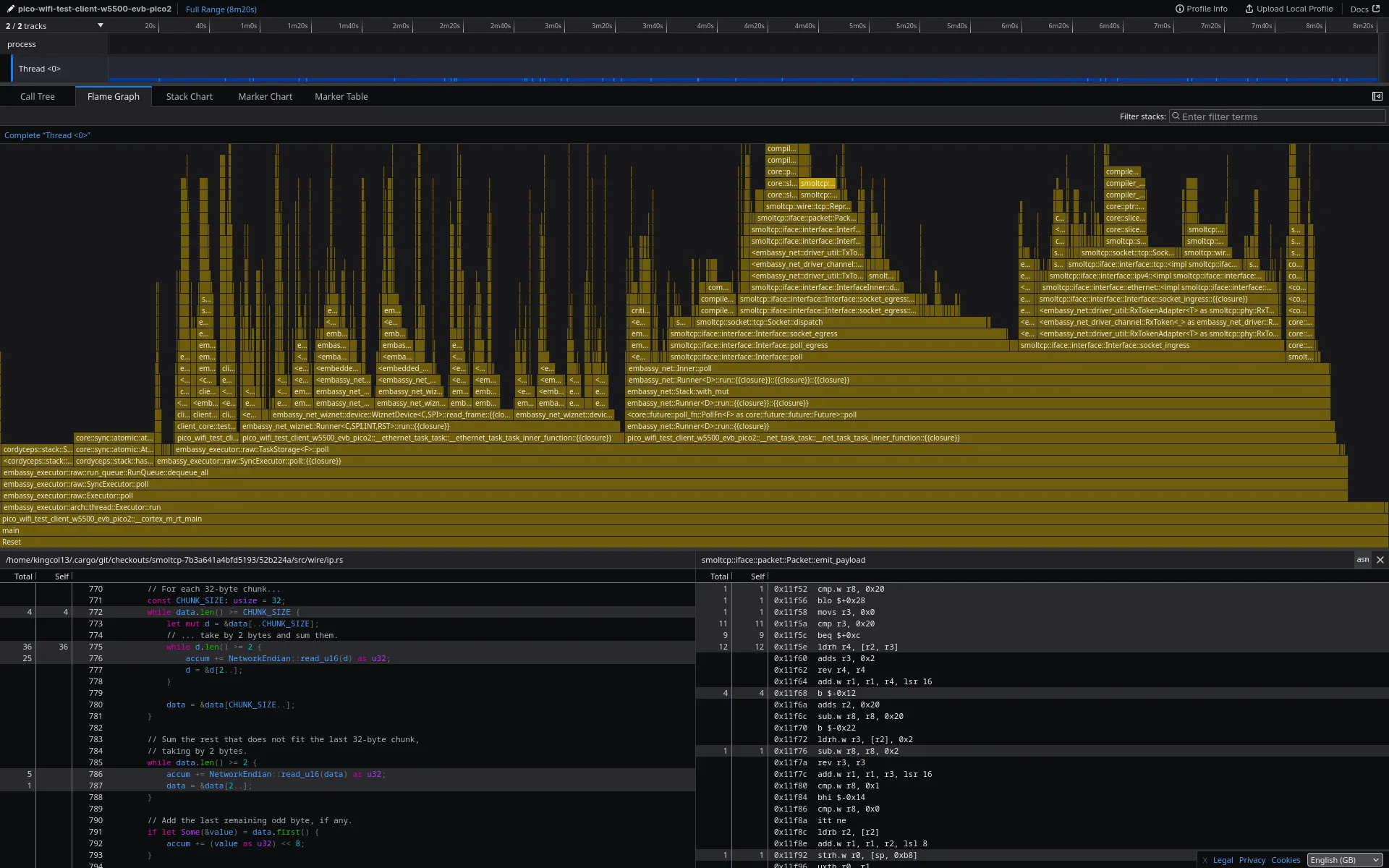
samply load probe-rs-profile.json.gzThis will open the profile in firefox profiler in your browser. samply will continue running to
convert program addresses to function names and display code listings when queried. Switching to the
“Flame Graph” tab, double clicking a bar and clicking the “asm” button yields a view like the
following:
Flame graphs
The widths of the bars of the flamegraph are proportional to the number of samples and hence to the time spent in that function. The x-axis is sorted alphabetically. The y-axis is stack depth, from caller-most at the bottom to callee-most at the top. See this blog post for an introduction to flamegraphs.
Saving and sharing profiles
To correctly display the profile with samply, the sampled binary must be present at the
<executing-elf-file> path. In order to embed the function names into a profile which you can then
share with others, you can use the “Upload Local Profile” option in firefox profiler and then click
“Download”.
Firefox profiler
Check the firefox profiler docs for more information on navigating the interface. The transforms section, detailing how to focus and merge, is particularly useful.
Footnotes
-
For example, TCP has a window scale option that throttles the bandwidth when the receiver appears to be overwhelmed - this can increase the size of the side effect. ↩